
Create your first quote
Build a quote from your price book: choose a client, add lines, set quantities, discount and tax, then save it.
Start a quote
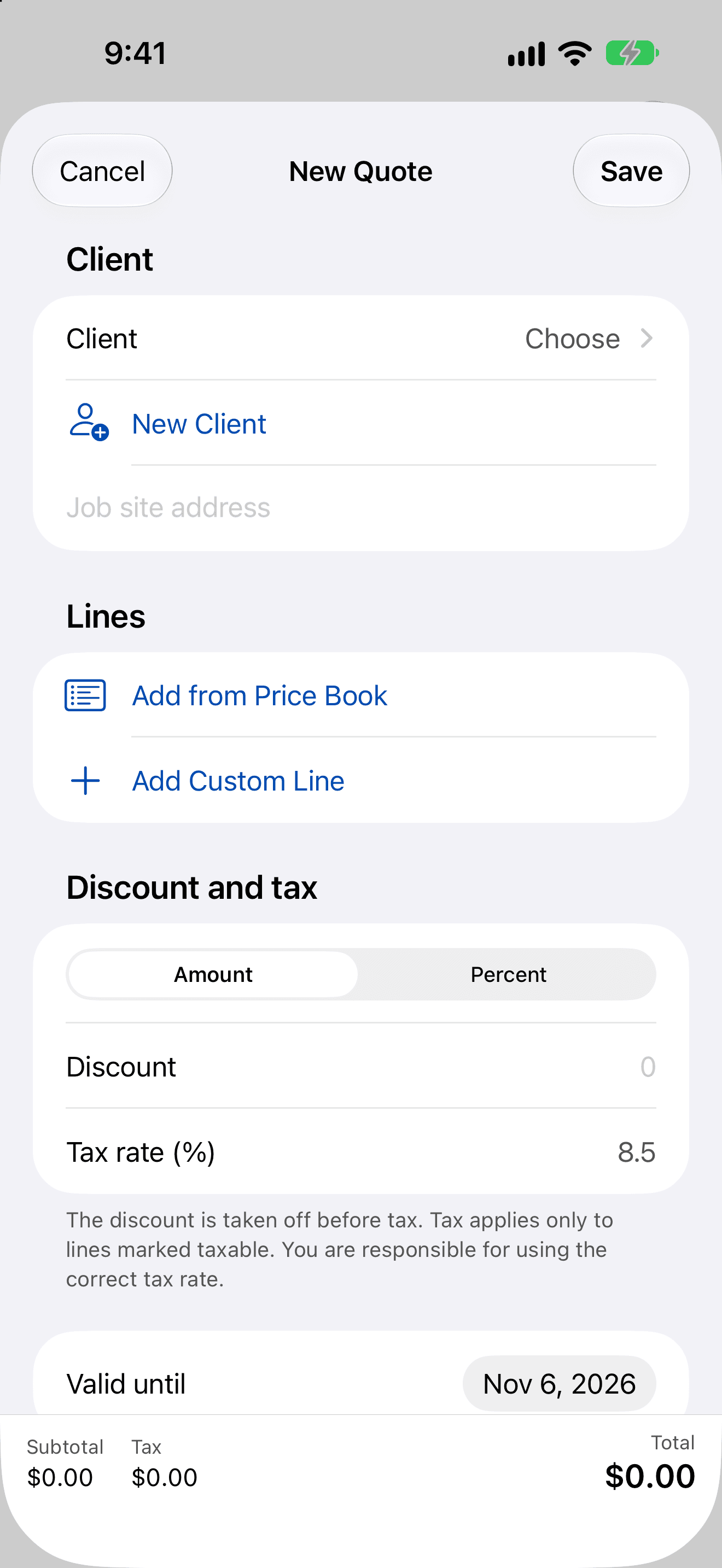
Tap New Quote on the Home screen. You can also tap + in Quotes, use New Quote for This Client on a client, or press ⌘N on an iPad keyboard.
1. Choose the client
- Tap Client and pick from the list, or tap New Client to add one on the spot. See Add and manage clients.
- The Job site address fills in from the client's first saved site. Use Use a saved site to pick a different one, or type an address.
2. Add the lines
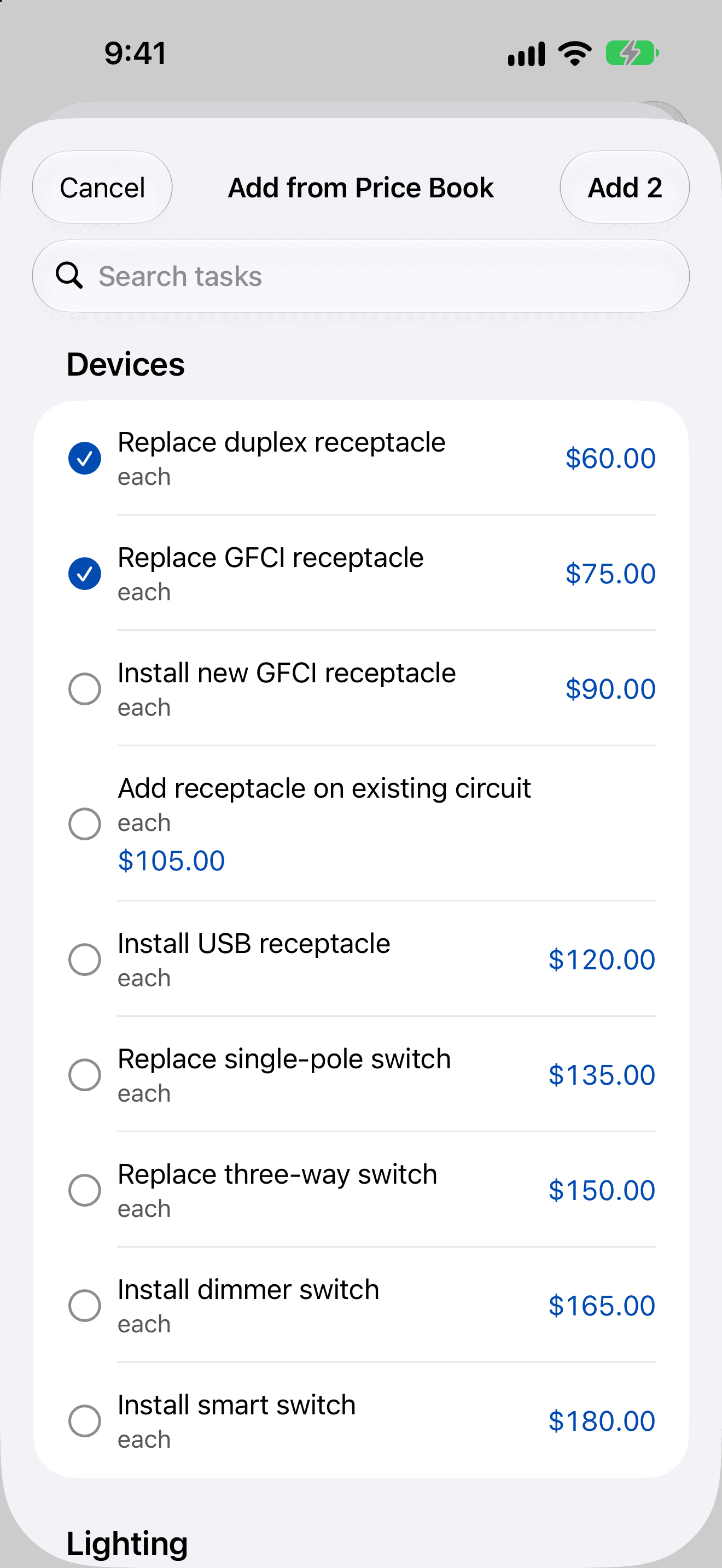
- Tap Add from Price Book, tick every task you need and tap Add. Archived items aren't listed.
- For anything that isn't in your price book, tap Add Custom Line.
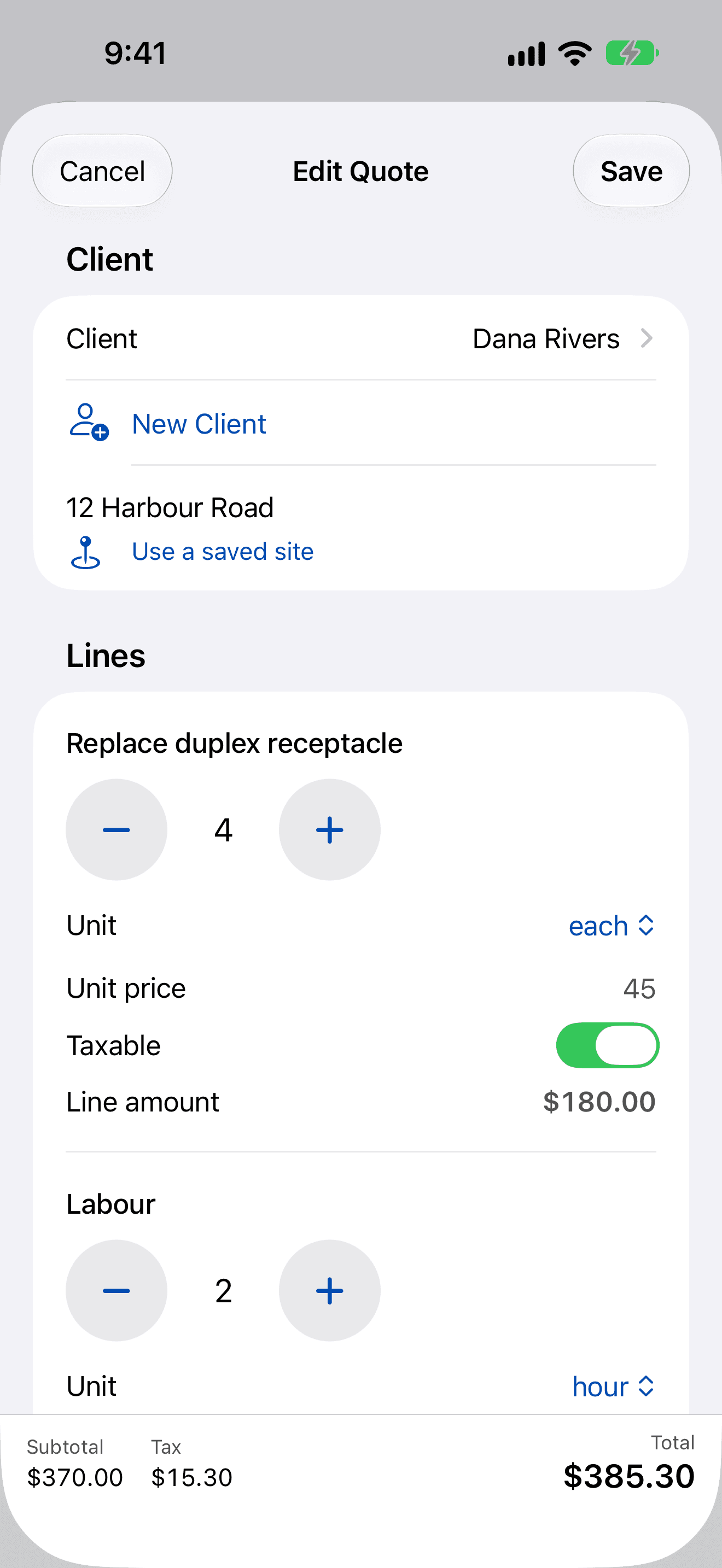
- Set each quantity with the large − and + buttons. At a quantity of 1, the minus button becomes a remove button. You can also swipe a line to remove it.
- Check the Unit, Unit price and Taxable switch on each line. If a price-book item has no price yet, the line asks you to enter one.
3. Discount, tax and dates
The bar along the bottom shows the subtotal, discount, tax and total as you go.
- Choose Amount or Percent, then enter the Discount. The discount is taken off before tax.
- Tax rate (%) starts from your business profile. Tax applies only to lines marked taxable.
- Valid until defaults to today plus your quote validity (30 days unless you changed it).
- Add Notes for the client, and switch on Add job photos to the PDF if you want photos included.
4. Save
Tap Save. The quote is saved as a draft. Next, get it signed on site or send it to your client.
If Save doesn't work
AmpQuote tells you what needs fixing:
- “Choose a client or add a new one.”
- “Add at least one line.”
- “Fix the highlighted lines.”: a line needs a description, a quantity above zero, or a price that isn't negative.
- “The discount can't be more than the subtotal.” or “Enter a percentage between 0 and 100.”
Changing a quote later
You can edit a draft or sent quote with Edit, as long as it hasn't been signed. To change an accepted, declined or expired quote, open its More menu and choose Create Revision. The revision is a new quote with a fresh valid-until date, and the original is kept and linked.
Tip: On the free plan, every new quote, including a revision, counts towards your 3 a month. See Subscription and the free plan.