
Fill in your price book
Set your own rates on the tasks you quote most, add new items, organise them, and add tasks for another trade.
Your price book is the list of tasks you pick from when building a quote. If you chose trades when you set up AmpQuote, it starts with common tasks for each one, without prices. Items that still need a rate show Add price.
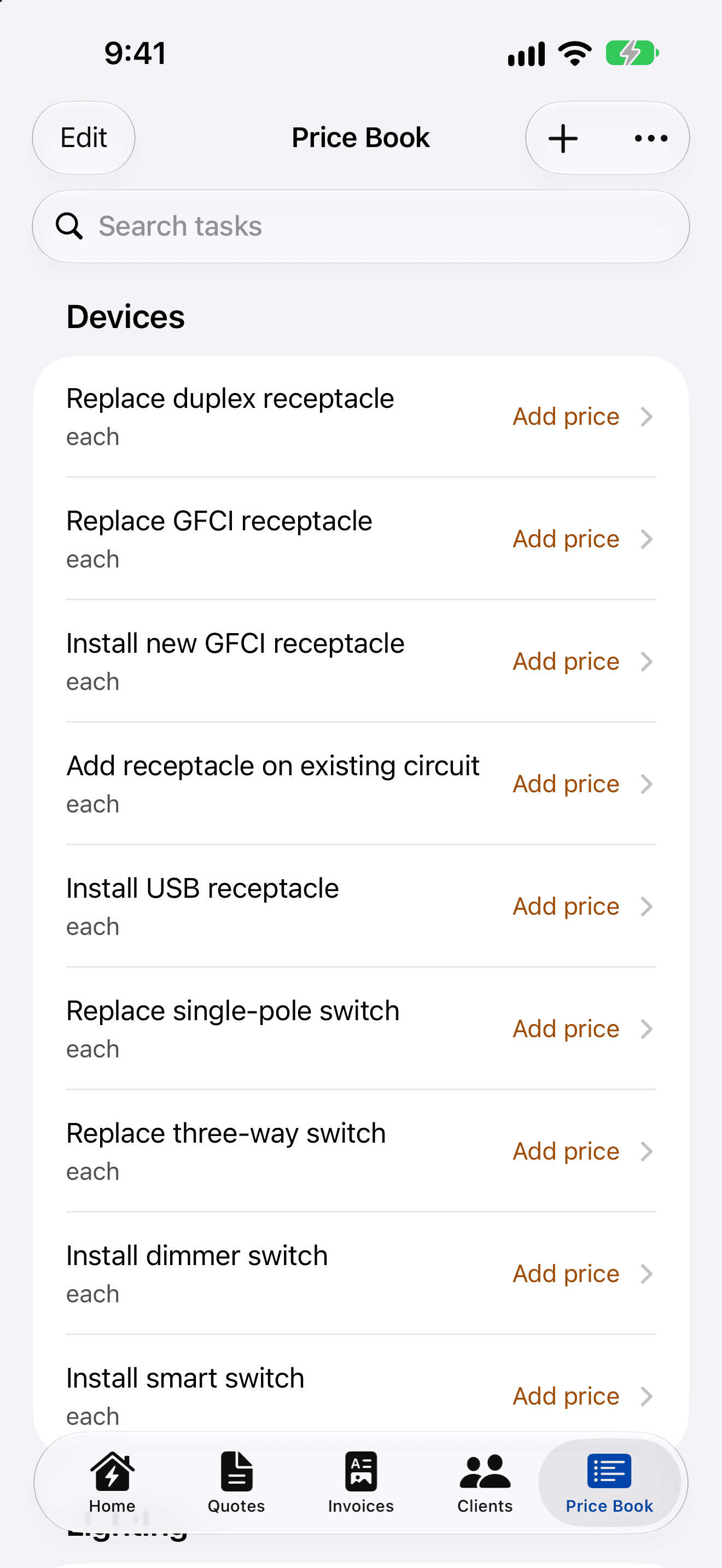
Set a price
- In Price Book, tap an item, then Edit.
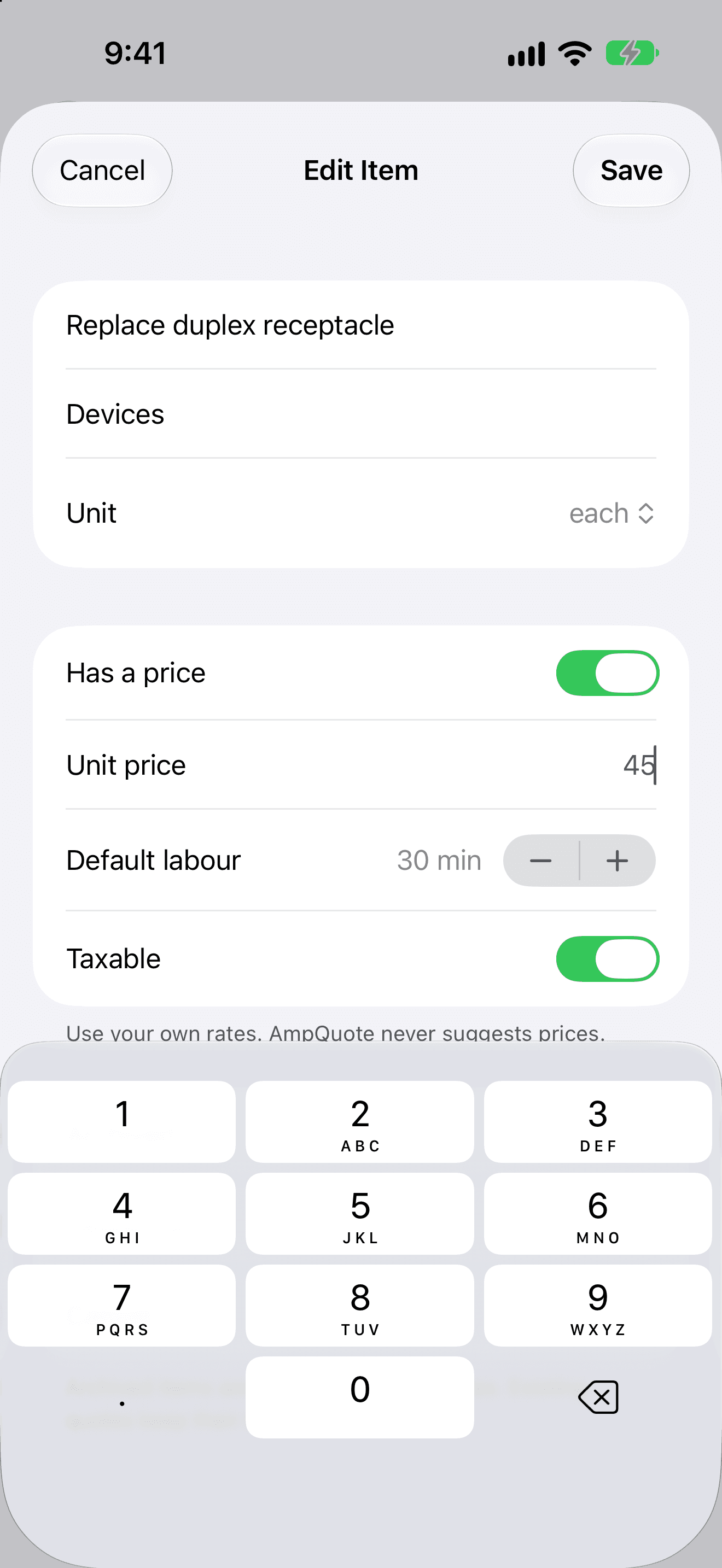
- Switch on Has a price and enter the Unit price.
- Optionally set Default labour (in 15-minute steps), change the Unit (each, metre, foot or hour) and the Taxable switch.
- Tap Save.
Tip: To see only the items still waiting for a rate, open the more menu (•••) and choose Show › Needs a price.
Add an item
Tap + (New Item). Only the Task name is required. Add a Category to group it with similar tasks.
Organise
- Search tasks looks through names and categories.
- To reorder, tap Edit and drag items within their category.
- Swipe an item and tap Archive to hide it from new quotes. Find it again under Show › Archived, where you can Restore it.
- Delete Item is at the bottom of the item editor. Quotes and invoices that already use the item aren't affected.
Add tasks for another trade
Open Settings › Add Trade Tasks, or Add Trade Tasks… in the Price Book's more menu, and tick the trades you want. Only tasks you don't already have are added (archived ones included), and nothing you've priced or edited is changed.
Already have a price list?
Import it from a spreadsheet. See Import a price book from CSV.