
Set up AmpQuote
What happens the first time you open AmpQuote: choosing your trades, adding your business details and the subscription screen.
Setting up takes about a minute, and you can change everything later. There's no account to create: your records stay on your device and, if you use iCloud, in your own iCloud account.
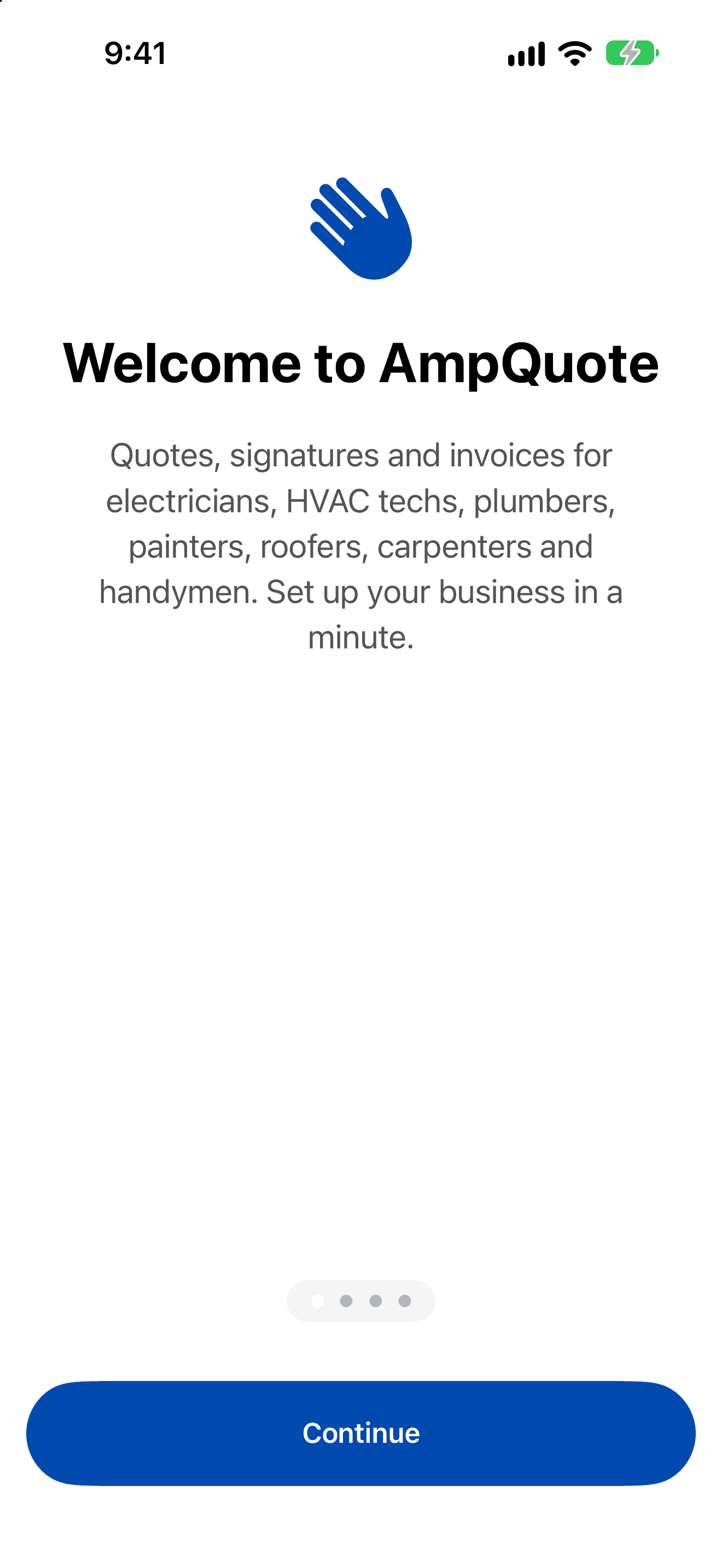
1. The welcome pages
Four short pages explain what AmpQuote does. Swipe through them or tap Continue. On the last page, tap Set Up My Business.
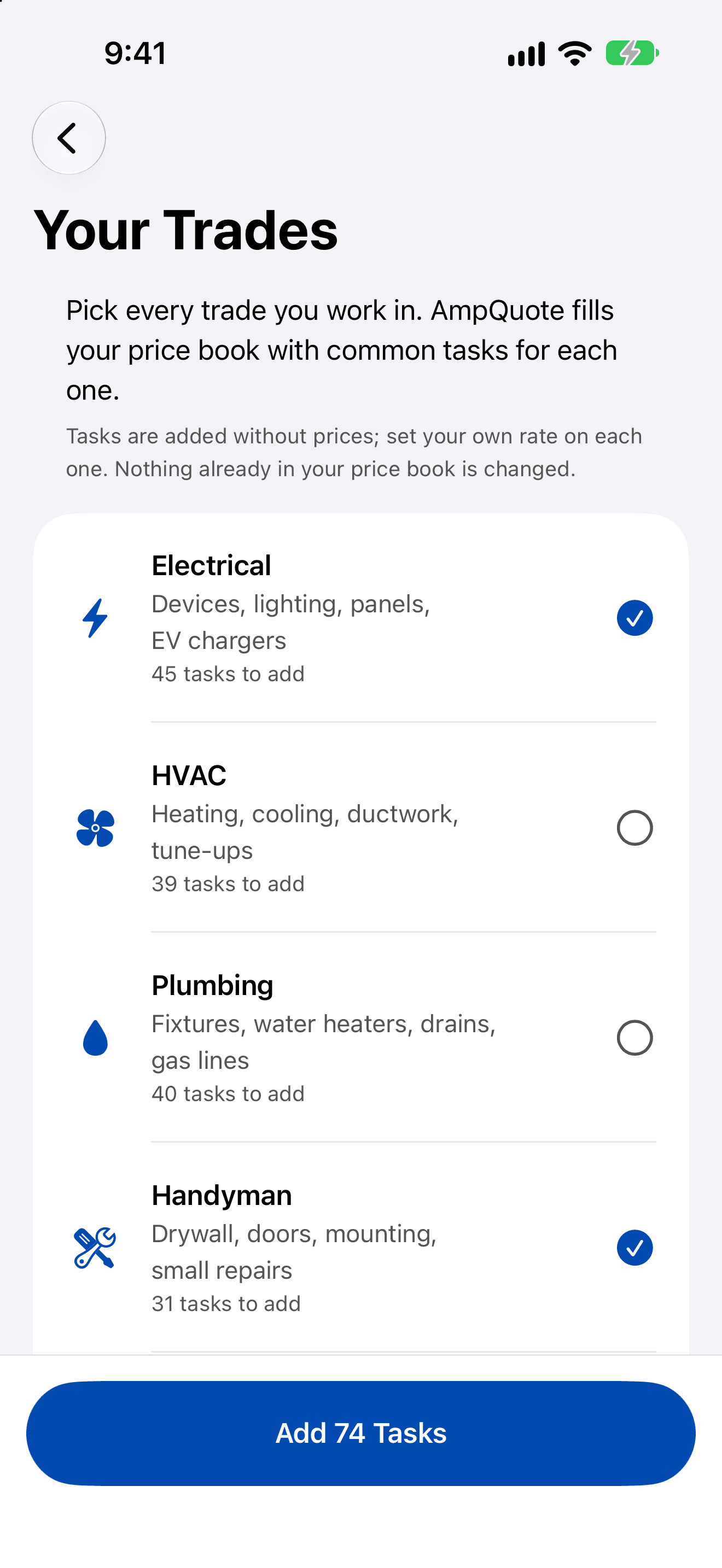
2. Pick your trades
On Your Trades, tick every trade you work in: Electrical, HVAC, Plumbing, Handyman, Painting, Roofing or Carpentry. Each one shows how many common tasks it will add to your price book.
- Tick one or more trades.
- Tap Add N Tasks (the number changes as you tick). Tasks shared between trades are added once.
- If you'd rather build your price book yourself, tap Continue Without Tasks.
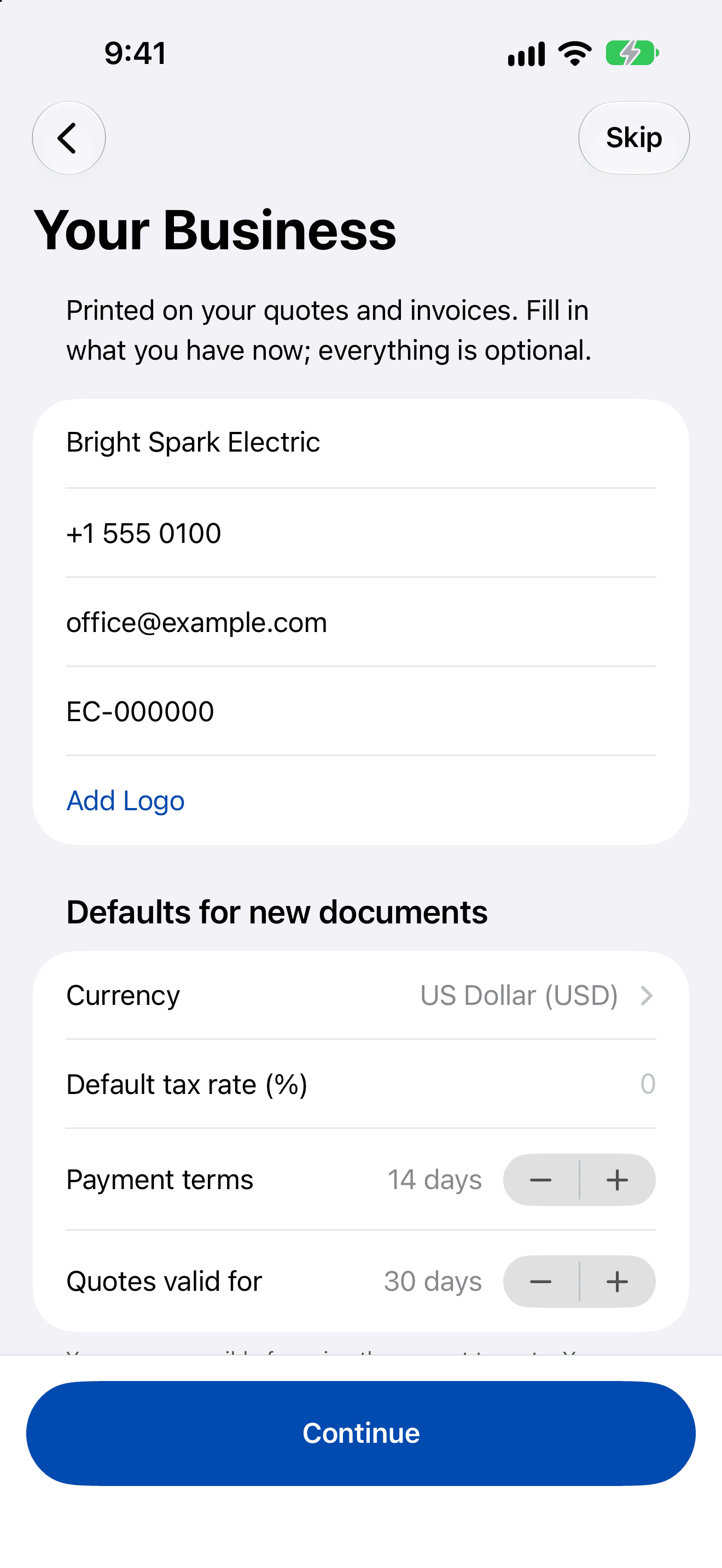
3. Your business
These details are printed on your quotes and invoices. Everything is optional, so fill in what you have now.
- Fill in what you have and tap Continue, or tap Skip to do it later.
- You can change all of this later in Settings › Business Profile.
- Business name, Phone, Email, Licence number and a logo (Add Logo).
- Defaults for new documents: currency, default tax rate, payment terms (14 days unless you change it) and how long quotes are valid (30 days).
4. The subscription screen
Last, AmpQuote shows the AmpQuote Pro options. You don't have to subscribe: tap Not Now to use the free plan, which gives you 3 new quotes a month with everything else included. See Subscription and the free plan.
What next
- Fill in your price book with your own rates.
- Create your first quote.