
PDFs, your logo and payment link
What's printed on your quote and invoice PDFs, how to preview them, and how to add your logo, licence number and a payment link.
Preview a PDF
On any quote or invoice, open More › Preview PDF. It's also in the Send screen.
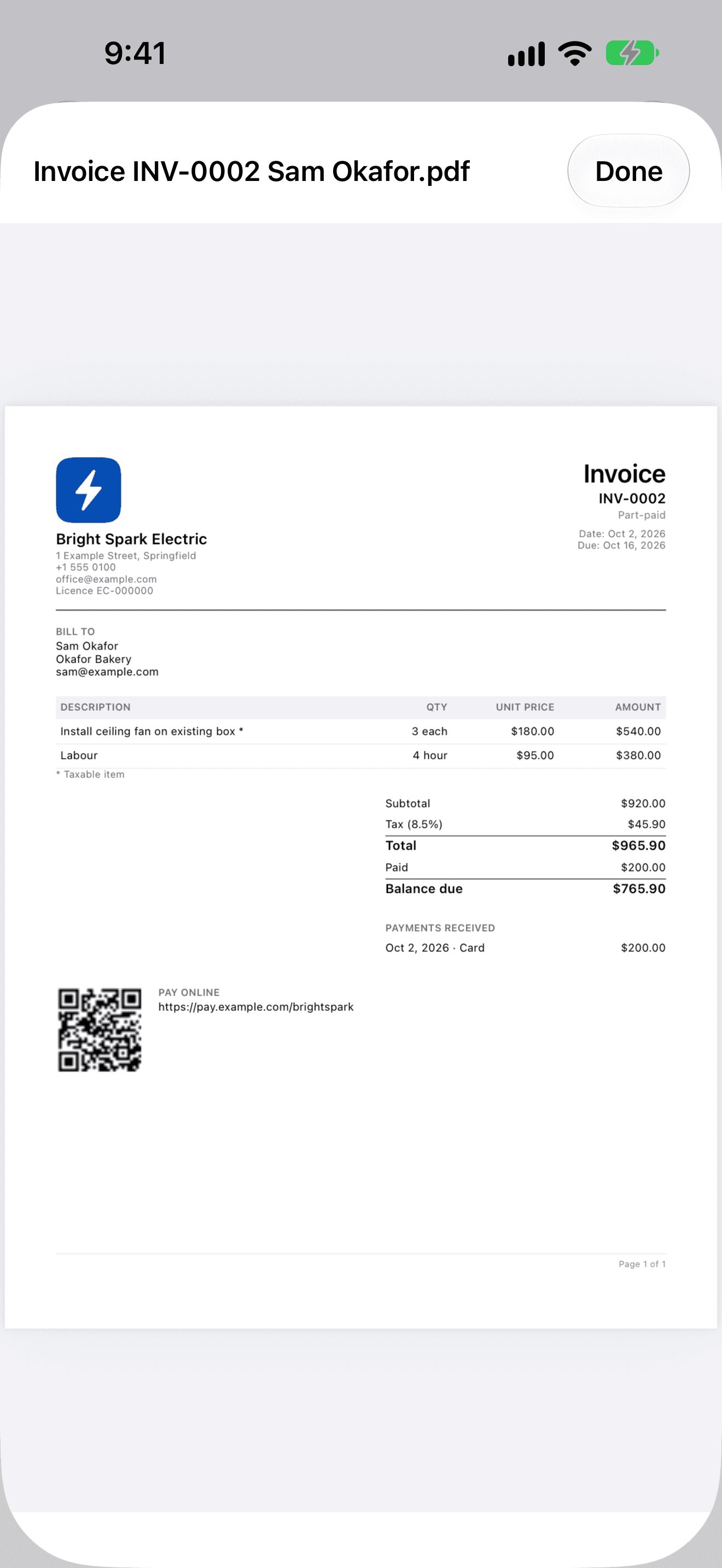
What's on the PDF
PDFs use US Letter paper in the US, Canada and other countries that use Letter, and A4 everywhere else.
- Your logo, business name, address, phone, email and licence number.
- The client (“Prepared for” on quotes, “Bill to” on invoices) and the job site.
- The date and either the valid-until or due date.
- Line items, subtotal, discount, tax and total. Invoices with payments also show what's been paid, the balance due and the payments received.
- Pay online with your payment link and a QR code. It's left off paid and void invoices.
- Your notes and terms, and the signature for accepted quotes. Unsigned quotes get blank signature, name and date lines.
- Job photos, if Add job photos to the PDF is on.
Add your logo and details
Go to Settings › Business Profile. Add a logo from Photos, and fill in your business name, address, phone, email and licence number. Then tap Save. See Your business profile.
Add a payment link
- Copy the payment link your payment provider gives you.
- In Settings › Business Profile › Payment link, paste it. It must start with https://.
- AmpQuote shows “Clients will be sent to …” with the website name, so you can check it’s the right address. Tap Save.
- Confirm with Save Link to ….
Job photos
On a quote or invoice, use Choose Photos or Take Photo in Job photos (up to 30 per document). Photos are resized and all their metadata, including location, is removed. Give each one a caption if you like. To delete one, touch and hold it.