
Send quotes and invoices
Send a PDF by email, text or any app, edit the message, and mark a document as sent when you've handed it over another way.
Send a document
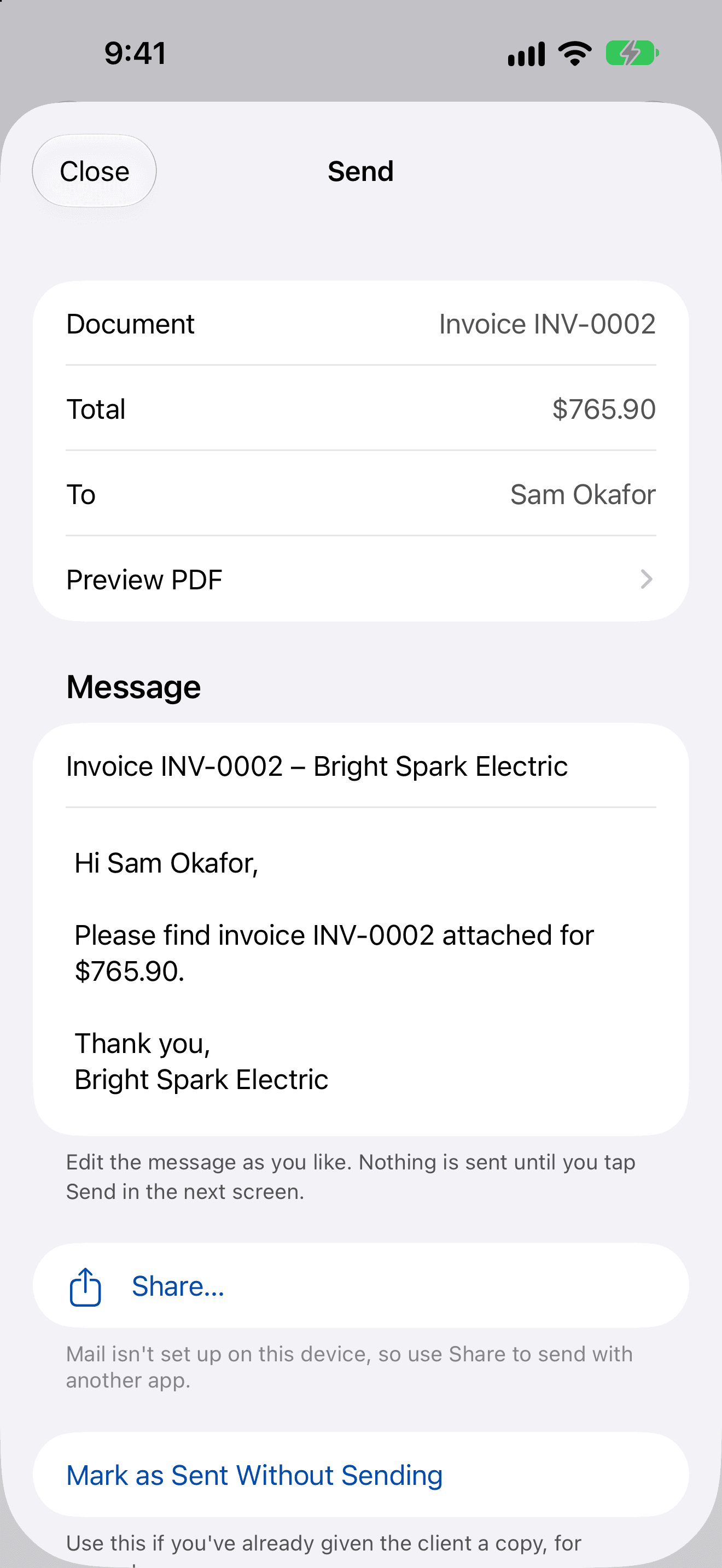
Email appears only when Mail is set up on the device, and Text Message only when it can send messages. Otherwise, use Share… to send with any other app.
- On a quote or invoice, tap Send (or Send Again, or More › Send…).
- Check the document, total and recipient, and tap Preview PDF if you want to see it.
- Edit the subject and Message as you like. Nothing is sent yet.
- Choose Email, Text Message or Share…. You review everything in the next screen before it goes.
When is it marked as sent?
- With Email or Text Message, it's marked sent as soon as the message goes.
- With Share…, AmpQuote can't tell whether the other app sent it, so it asks Did you send it? Choose Yes, Mark as Sent only if the client has it.
- Already gave the client a copy, for example on paper? Use Mark as Sent Without Sending.
Document numbers
A number such as Q-0007 or INV-0012 is given when you start sending, so the PDF carries it. Sending again keeps the same number. You can change the prefixes in Settings › Business Profile › Numbering.
The message template
Set your default message in Settings › Business Profile › Message template. These placeholders are filled in for you:
- {client}, {business}
- {document} and {number}, for example “invoice INV-0002”
- {total}: for a part-paid invoice, this is the balance still due
- {due}: the invoice due date
- {link}: your payment link
If it couldn't be sent
If you see “Not sent”, check your connection and try again, or use Share… instead.