
Create invoices
Turn an accepted quote into an invoice in one tap, start a blank invoice, and void an invoice that was wrong.
From an accepted quote
Tap Create Invoice on the accepted quote, or in Ready to invoice on the Home screen. The invoice copies the lines, discount, tax, notes and job site. The due date comes from your payment terms (14 days unless you changed them). Creating an invoice from a quote is included in the free plan.
Tip: A quote can have one invoice at a time. To replace it, void the existing invoice first.
A blank invoice
For work you didn't quote, tap + in Invoices, then New Invoice. It works like the quote editor, with Payment terms and a Due date. Blank invoices need an AmpQuote Pro subscription.
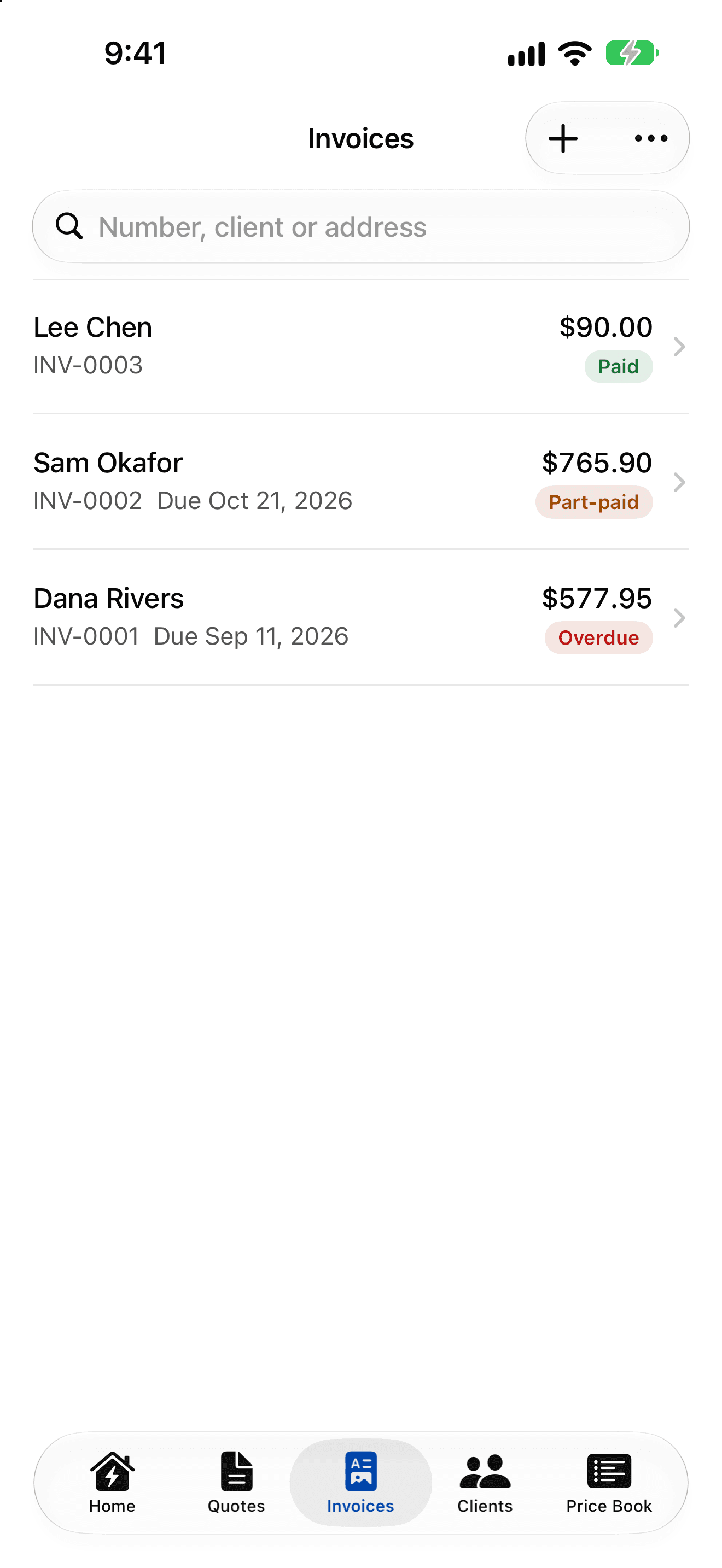
Invoice statuses
- Draft: not sent yet, and the only kind you can edit or delete.
- Sent: sent and unpaid.
- Part-paid: some payments recorded.
- Paid: paid in full.
- Overdue: unpaid after its due date. The due date itself isn't overdue, and “today” is worked out in your own time zone.
- Void: cancelled but kept for your records.
Fixing a sent invoice
Sent invoices can't be changed or deleted, so your records stay complete. If the amounts are wrong, open More › Void Invoice. A void invoice keeps its number and payments but no longer counts as money owed, and voiding can't be reversed. Then create a new invoice.
A draft invoice with no payments can be deleted from its More menu.
On the Home screen
- Awaiting answer: sent quotes still within their valid-until date.
- Unpaid: sent and part-paid invoices, totalled by the balance still due.
- Overdue: unpaid invoices past their due date.
- Ready to invoice: accepted quotes that don't have an invoice yet.