
Get a quote signed
Have your client sign on screen, what gets locked when they do, and what to do if a quote needs changes or is turned down.
Sign on site
A quote doesn't need to be sent first. A draft gets its number when it's signed.
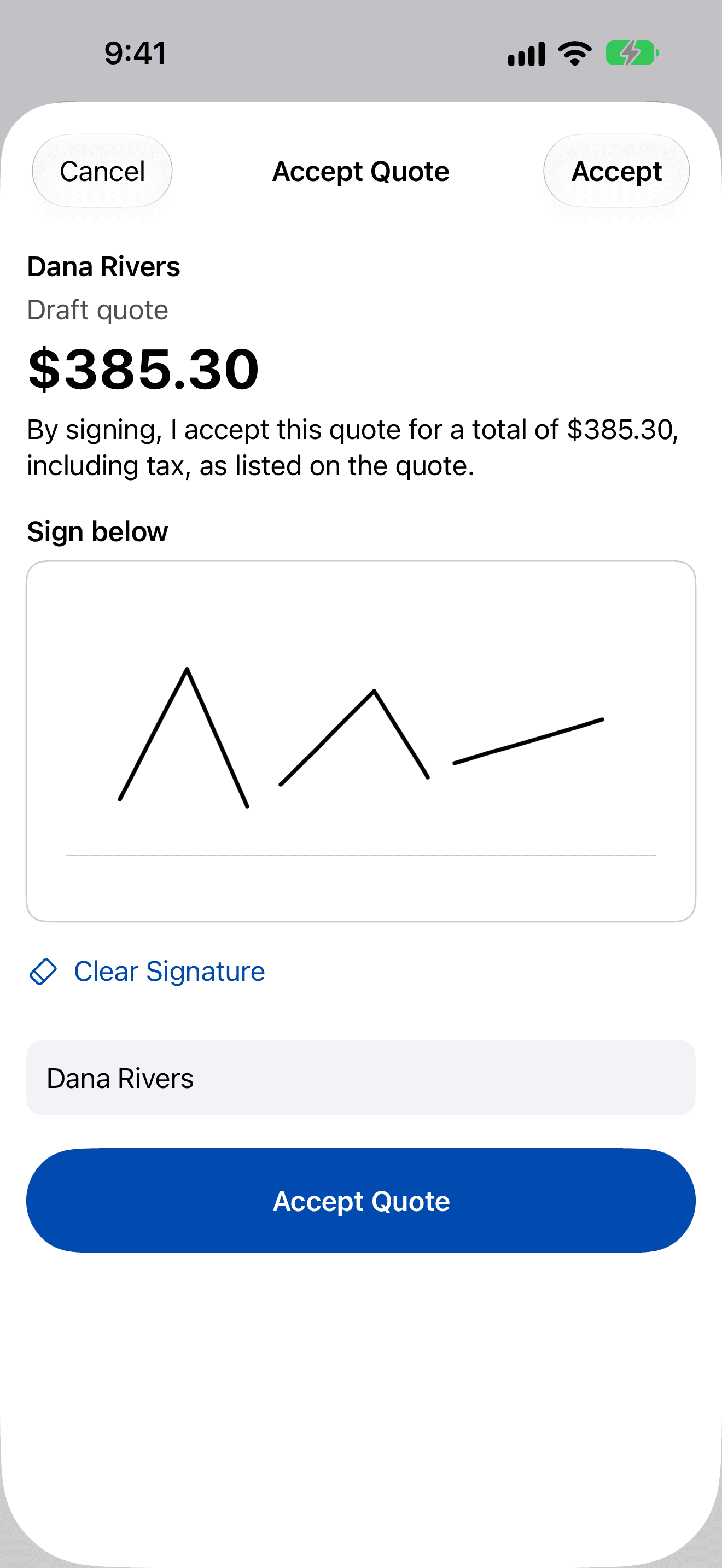
- Open the quote and tap Get Signature.
- Hand over the device. The screen shows the total and the sentence your client is agreeing to: “By signing, I accept this quote for a total of …, including tax, as listed on the quote.”
- Your client signs in the box with a finger or Apple Pencil. Clear Signature starts again.
- They type their full name.
- Tap Accept Quote.
What signing locks
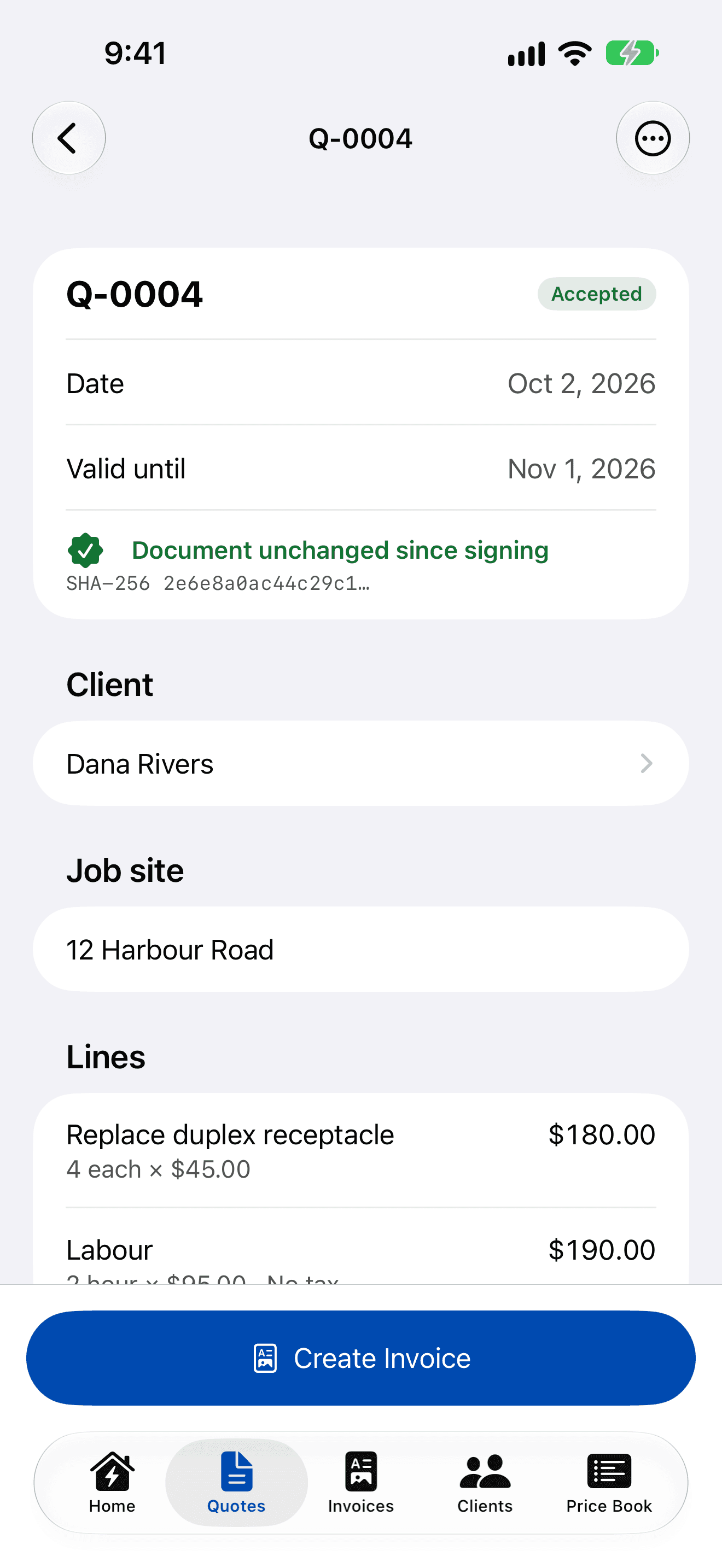
Once accepted, the signature, name, time and totals can't be changed, and Edit disappears. AmpQuote keeps the signed PDF with a SHA-256 fingerprint. Whenever you open the quote it checks that fingerprint and shows Document unchanged since signing.
When you send or preview a signed quote, AmpQuote always uses that stored signed PDF.
Tip: Job photos added after signing stay with the quote but don't appear in the signed PDF. Add them before signing if they need to be in it.
When signing is blocked
- The quote is past its valid-until date: create a revision with a new date.
- The quote has no lines.
- The quote's number clashes with one made on another device: tap Renumber first (see iCloud and your devices).
Changes and declines
- To change a signed quote, use More › Create Revision. The signed original is kept.
- If the client says no, use More › Mark Declined. A declined quote can't be signed or sent again, but you can still create a revision later.
- Sent quotes that pass their valid-until day are marked Expired automatically.
Next: invoice it
Tap Create Invoice on the accepted quote. See Create invoices.