
Add and manage clients
Add clients with their job sites, find possible duplicates after syncing, and understand when a client can be deleted.
Add a client
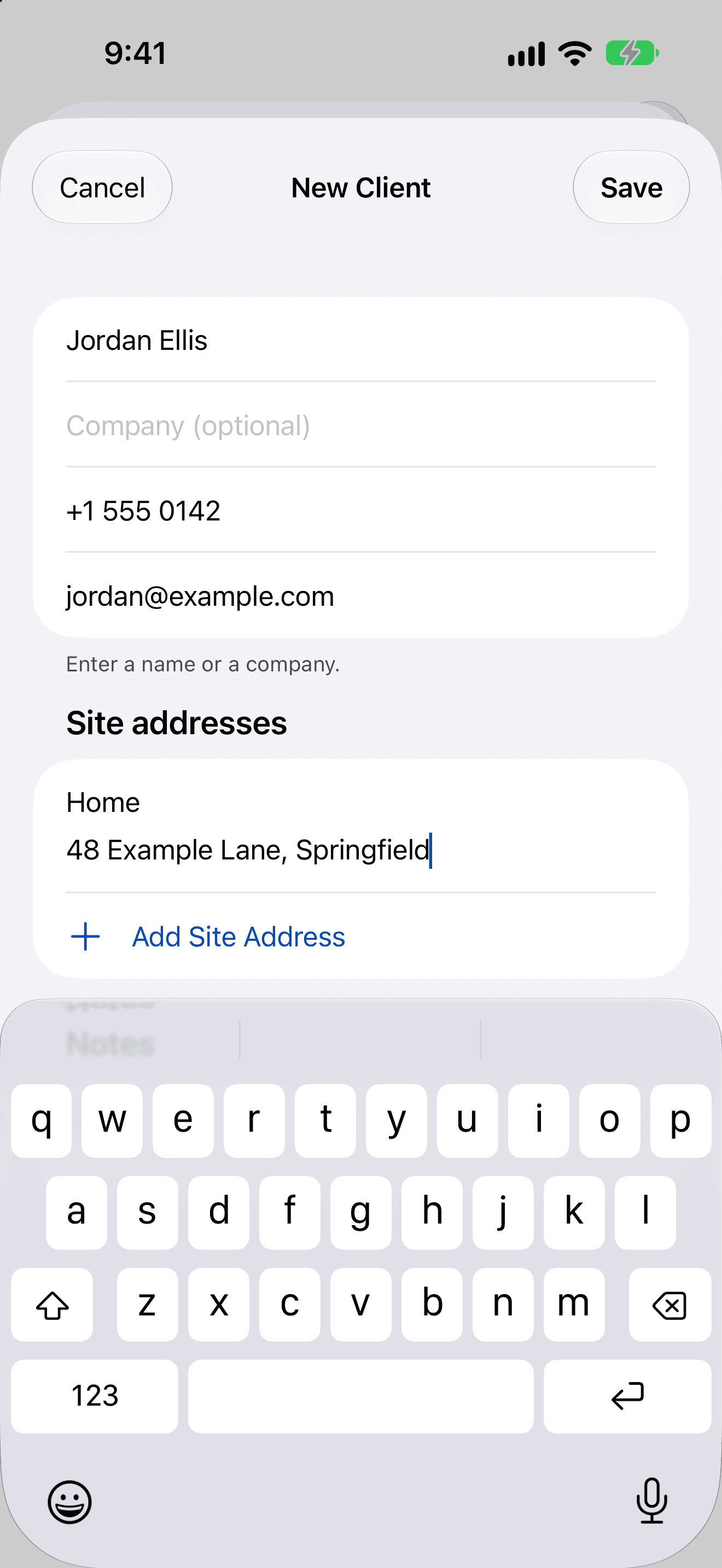
Tap + in Clients, or New Client while building a quote.
- Enter a Name or a Company; you need at least one of them.
- Phone and Email are optional. A phone number can use digits, spaces, +, - and brackets.
- Under Site addresses, give each job site a label such as Home or Shop, and the address. Tap Add Site Address for more.
- Add any Notes, then tap Save.
A client's page
Tap a client to see their phone and email (tap to call or write), sites, notes, quotes and invoices. New Quote for This Client starts a quote with them already chosen.
Possible duplicate clients
If two clients share an email address, or the same name and phone number, AmpQuote flags the newer one as a Possible duplicate. This usually happens when the same client is added on two devices that later sync.
- Merge moves the duplicate's quotes, invoices and site addresses to the other client and deletes the duplicate record.
- Keep Both clears the flag for good.
Deleting a client
Open the client's More menu and choose Delete. AmpQuote lists exactly what will go with them (their quotes, draft invoices, photos and sites) before you confirm, and you can undo for a few seconds afterwards.