
Record payments
Record part and full payments against an invoice, and what to do if a payment was entered by mistake.
Record a payment
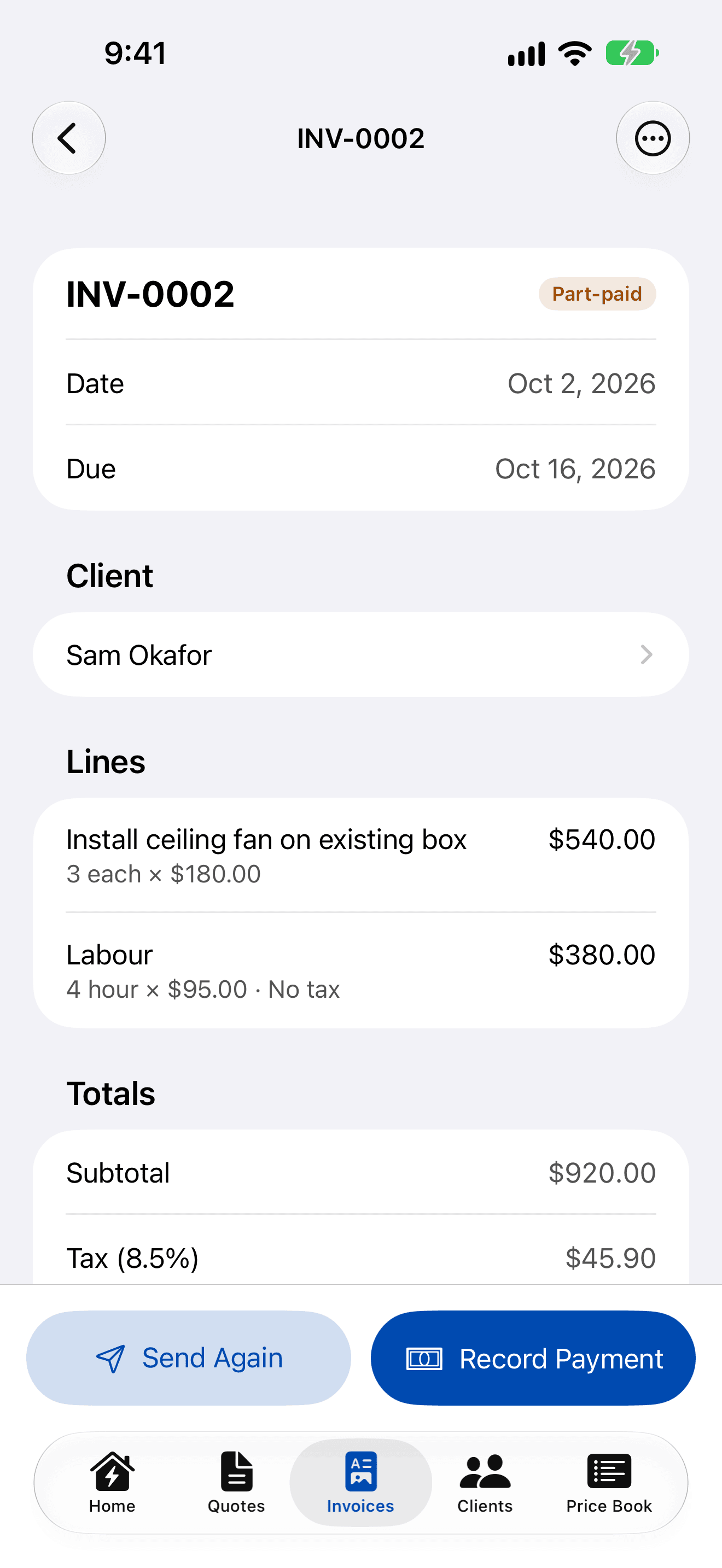
The invoice updates itself to Part-paid or Paid, and the Home screen totals change with it.
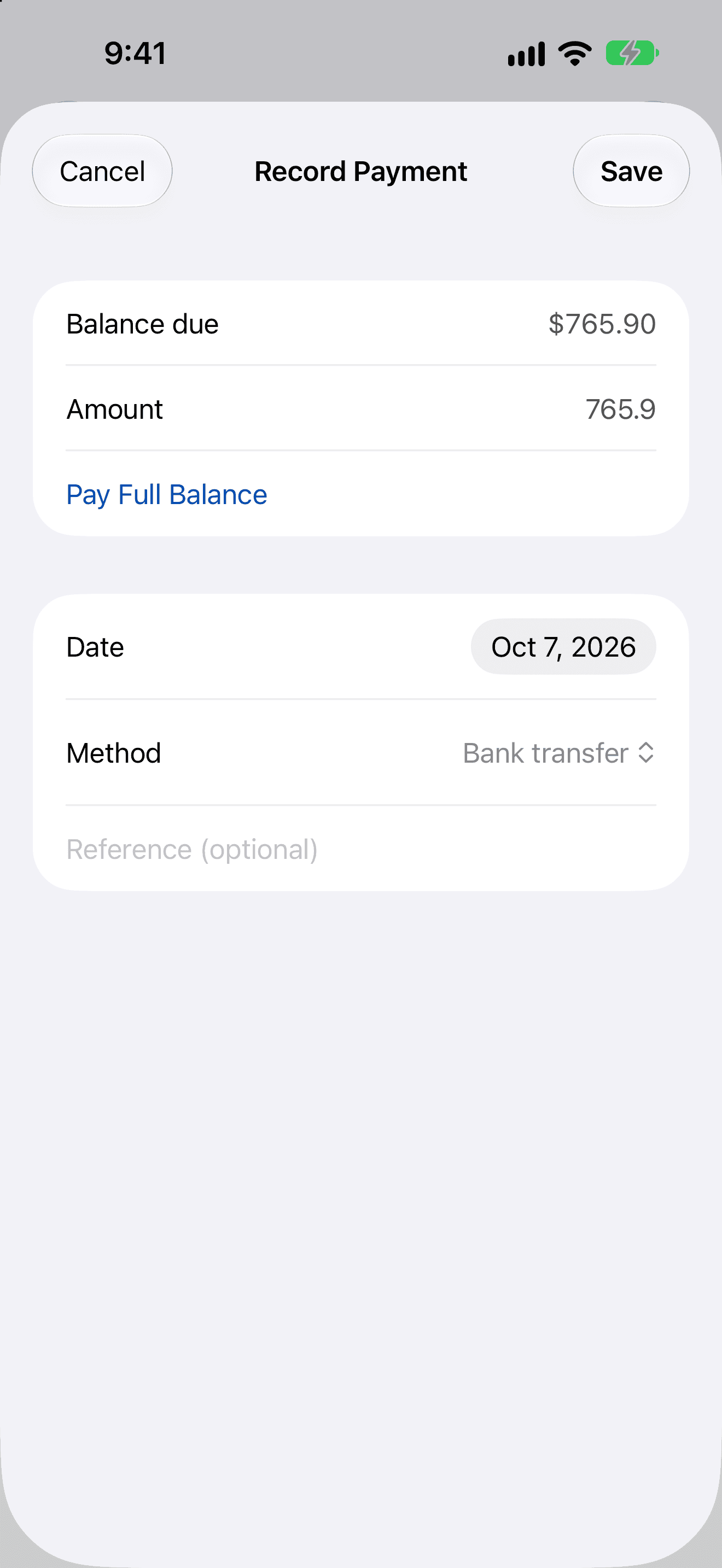
- Open a sent or part-paid invoice and tap Record Payment.
- The Amount is filled in with the balance due. Change it for a part payment, or tap Pay Full Balance.
- Set the Date (today or earlier) and the Method: Cash, Cheque, Card, Bank transfer or Other.
- Optionally add a Reference, such as a transfer ID, then tap Save.
Rules
- A payment can't be more than the balance due.
- The amount must be more than zero.
- AmpQuote doesn't take payments itself. It records the payments you receive.
Remove a payment
In the invoice's Payments section, swipe the payment and tap Remove. Use this only for a payment recorded by mistake; the status updates.
Getting paid online
Add a payment link from your own payment provider in your business profile, and it's printed on your documents as an address and a QR code. See PDFs, your logo and payment link.