Export, accountant CSV and erasing your data
Get a complete copy of your records, send invoices and payments to your accountant, or erase everything.
These are in Settings › Your data. Export and erase always work, whether or not you have a subscription.
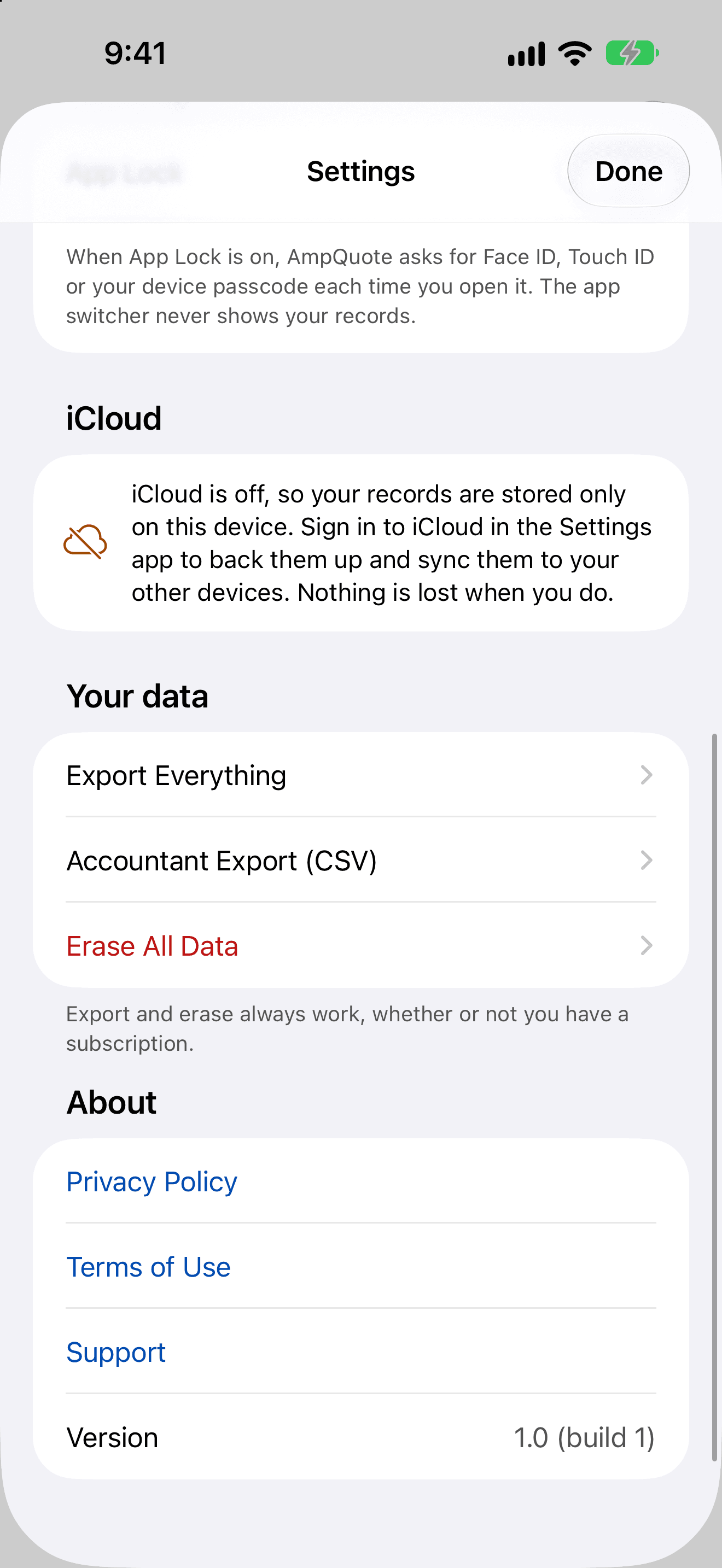
Export Everything
The file is named AmpQuote-Export- followed by the date. It contains every quote, invoice, client, payment, price-book item and your business profile as JSON files, plus the original attachments: your logo, signatures, signed quote PDFs and job photos.
- Tap Export Everything.
- Wait while it shows Exporting…. You can cancel, and nothing is saved.
- Choose where to save or send the ZIP file, for example Save to Files.
Tip: We can't see or recover your data, so export regularly to keep your own backup, especially if you don't use iCloud.
Accountant Export (CSV)
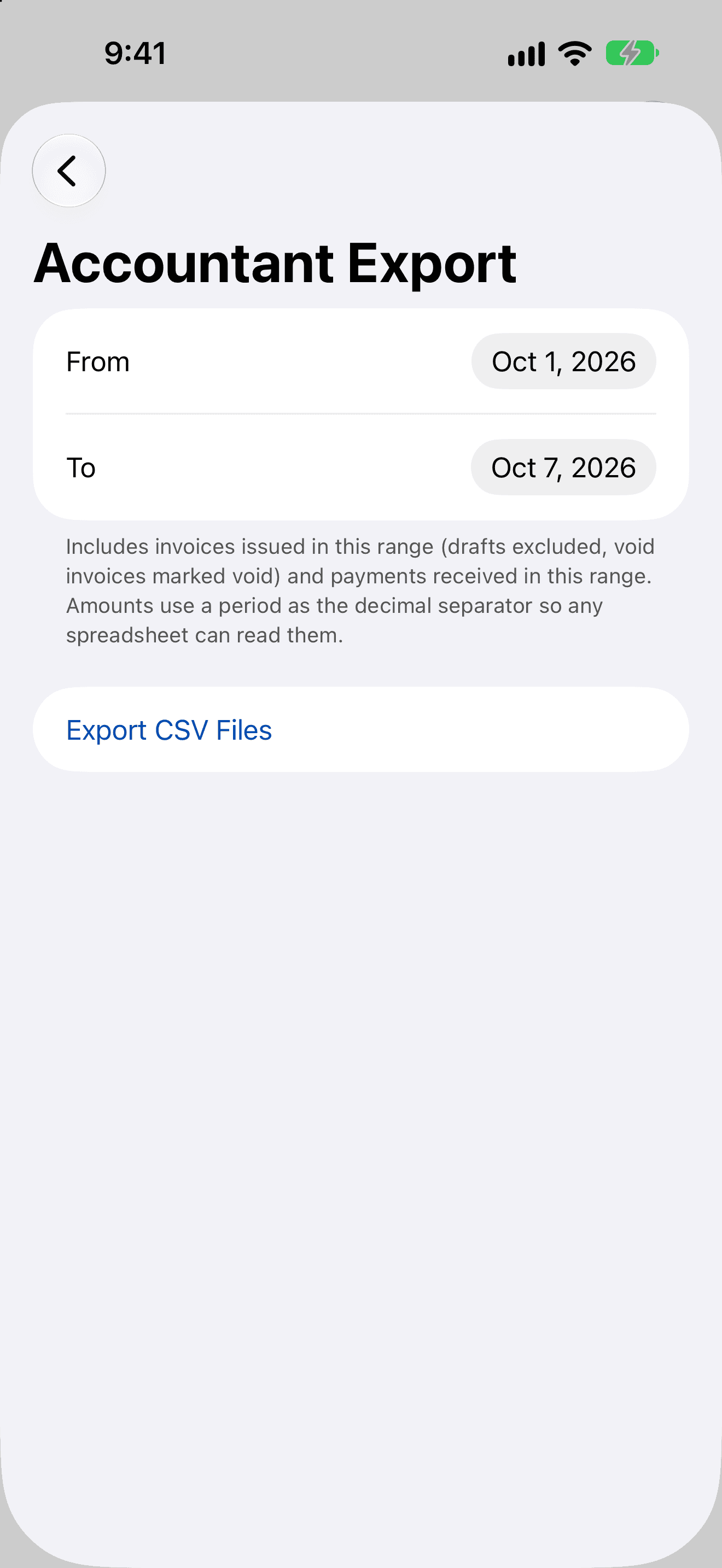
You get two files. The invoices file lists invoices issued in the range (drafts left out, void ones marked void) with number, status, client, dates, currency, subtotal, discount, tax, total, paid and balance. The payments file lists payments received in the range with invoice number, client, date, method, reference and amount. Amounts use a full stop as the decimal point so any spreadsheet can read them.
- Tap Accountant Export (CSV).
- Choose the From and To dates. They start as the 1st of this month to today.
- Tap Export CSV Files and choose where to send them.
Erase All Data
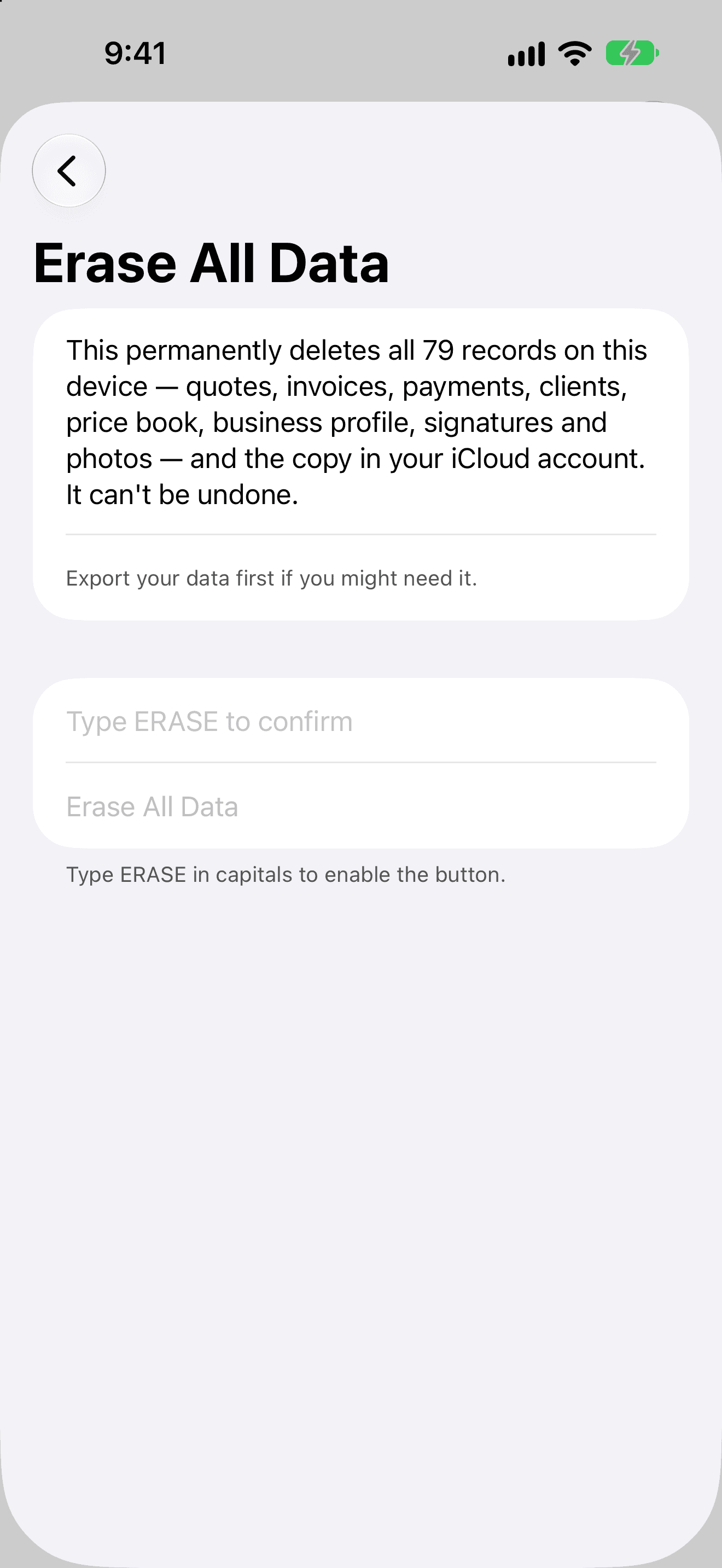
This permanently deletes every record and attachment on the device and the copy in your iCloud account. It can't be undone. If iCloud can't be reached at that moment, the iCloud deletions happen the next time the device is online. You can also delete AmpQuote's iCloud data in iOS Settings › your name › iCloud › Manage Storage.
- Export first if you might need anything.
- Tap Erase All Data, read what will be deleted, and type ERASE in capitals.
- Tap Erase All Data.